
Install
Install Project Cinders from a USB drive, then try the projector controls free for 7 days.
Install from USB
Recommended. You’ll need a computer and a USB drive.
- On a computer, create a folder named exactly
QNYKat the top level of a FAT32 or exFAT USB drive. Copy the downloaded APK into it. XGIMI’s file manager treats APKs in that folder as apps. - Plug the drive into the projector. In the 快速打开U盘文件 (“Quickly open USB drive files”) window, choose 全部文件 (“All files”). If the window doesn’t appear, open XGIMI’s File Manager and choose the USB drive.
- Open
QNYK, select the APK with the green Android icon, and press OK. - In the install dialog, press 安装 (“Install”). XGIMI shows the red “not certified” notice for every app installed outside its store.
- When installation finishes, press 打开 (“Open”). You’ll also find Project Cinders in XGIMI’s app list.
First run
Every setup step is optional. Skip anything you don’t want to change.
- On-device ADB helper. Use network ADB only on a trusted network. On some firmware, anyone on that network can get shell access without approval. Choose Turn on network ADB now, then Check again. Network ADB turns off when the projector restarts unless you enable Turn on network ADB after restart under System → Network ADB.
- Language. Switch Android to English or leave the current language in place. You can also set per-app languages. Most of XGIMI’s own screens stay in Chinese.
- Time zone. Keep the current time zone or choose a different one.
- Home button. To use Project Cinders as Home, select it in Android’s confirmation and choose Set as default. The next time you press Home, XGIMI may show 打开方式 (“Opening method”). Choose Project Cinders, then 始终 (“ALWAYS”).
- Get apps. Browse apps from their official sources. Nothing installs until you confirm.
- Clean up. Review and optionally disable selected XGIMI apps. Nothing is deleted, and you can restore the apps later.
Trial and activation
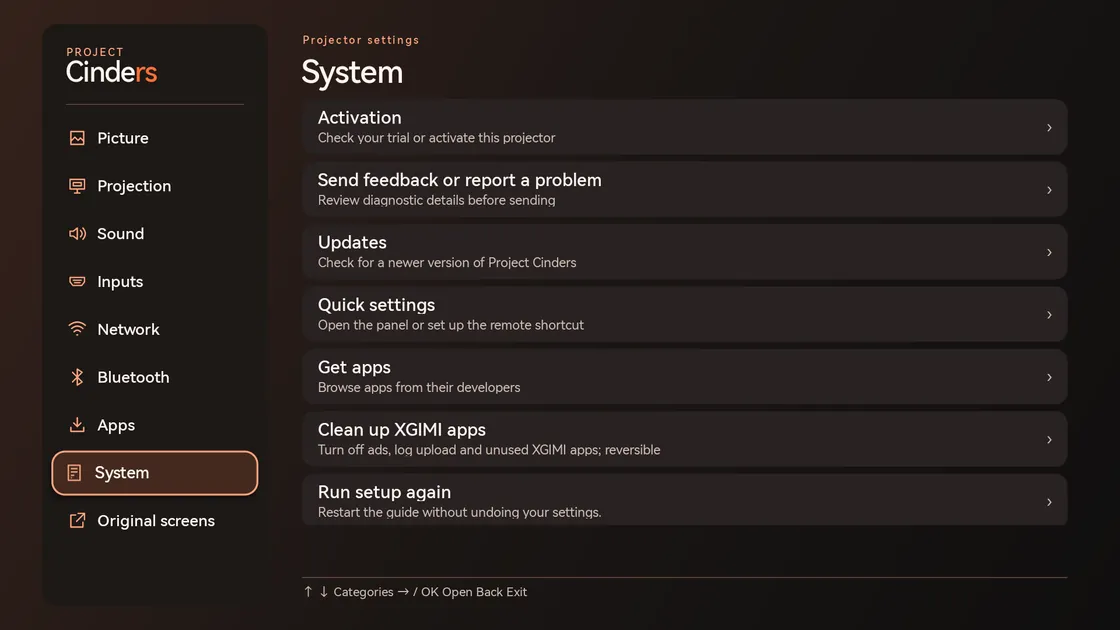
Use the 7-day trial to test the controls you need. To activate, open Settings → System → Activation. Choose Get a pairing code and scan the QR code with your phone, or choose Enter key instead to type the key on your projector.
Trying another XGIMI model?
Other XGIMI models can run the 7-day trial. No purchase is needed, and the free features keep working afterward. If something doesn’t work, open Settings → System → Compatibility and choose Ask for support.
Review the report before sending it. It includes the compatibility check, firmware and build details, XGIMI system app versions, display and HDMI input information, and recent diagnostics. The app automatically removes serial numbers, IP addresses, email addresses, and full license keys.
After sending, scan the QR code to add photos from your phone. Reporting works during the trial and on the free tier. That’s how new models get added.
Updating
Project Cinders is actively maintained. Its built-in updater, under Settings → System → Updates, checks daily while you use the app. It verifies the signature and SHA-256 hash of each download, then Android asks you to confirm installation. See the public changelog.
After updating, pressing Home may ask once more which app to open. Choose Project Cinders and Always.
Undo or uninstall
Before uninstalling, open Settings → System → Undo Project Cinders changes. Restore the language, Home button, and any other setup changes you want to reverse. Open Clean up to restore apps you disabled.
Then uninstall Project Cinders from the projector’s app settings. Uninstalling returns the Home button to XGIMI, but won’t restore a changed language or re-enable disabled apps.
Advanced: install using ADB
- Install Android Platform Tools on your computer. Enable network ADB on the projector only on a trusted network. Approve the debugging prompt if one appears, and use the port shown by your projector if it differs.
- Open a terminal in the folder where you downloaded the APK:
adb connect PROJECTOR_IP:5555 adb install -r ProjectCinders-0.4.0.apk - Turn off network ADB when you’re done.